
CSS image-orientation Property
The CSS image-orientation property controls whether an image is displayed according to orientation information embedded in the image file.
Digital cameras and smartphones may store orientation metadata that tells software how a photograph should be displayed. The image-orientation property allows browsers to apply that information automatically or ignore it for most images. It does not provide arbitrary rotation angles for ordinary image elements.
image-orientation Syntax
The image-orientation property accepts two standard values: from-image and none.
Basic Syntax
selector {
  image-orientation: from-image;
}
Use Image Metadata
img {
  image-orientation: from-image;
}
Ignore Image Orientation Metadata
img {
  image-orientation: none;
}
CSS-Wide Keywords
img {
  image-orientation: initial;
}
img {
  image-orientation: inherit;
}
img {
  image-orientation: unset;
}
img {
  image-orientation: revert;
}
img {
  image-orientation: revert-layer;
}
The initial value is from-image. Modern browsers normally use embedded orientation information automatically.
Invalid Angle Syntax
img {
  image-orientation: 90deg;
}
Angle values are not part of the current standard syntax. Use the transform property when an image needs an arbitrary visual rotation.
Property Values
The two values determine whether the browser uses embedded orientation information or ignores it for applicable images.
| Value | Description |
|---|---|
from-image |
Uses orientation information contained in the image, such as EXIF orientation metadata. |
none |
Ignores embedded orientation metadata for images where the browser permits this behavior. |
initial |
Resets the property to from-image. |
inherit |
Inherits the computed value from the parent element. |
unset |
Inherits the parent's value because the property is inherited. |
revert |
Reverts the property according to cascade origin rules. |
revert-layer |
Reverts the property according to cascade layer rules. |
Property Characteristics
| Characteristic | Value |
|---|---|
| Initial value | from-image |
| Inherited | Yes |
| Applies to | All elements |
| Computed value | As specified |
| Animation type | Discrete |
| Percentages | Not applicable |
| Related properties | transform, rotate, object-fit, object-position, image-rendering |
The property affects the orientation of image content. It does not directly change the image file or rewrite its metadata.
How It Works
Some image files contain orientation metadata describing how their stored pixel data should be displayed. The browser can use that information to present the image in its intended orientation.
Default Orientation
img {
  image-orientation: from-image;
}
The browser applies the image's embedded orientation information when it is available and supported.
Ignore Embedded Orientation
img {
  image-orientation: none;
}
For applicable images, this requests display without applying the orientation metadata.
Image Without Orientation Metadata
If an image has no relevant orientation metadata, the two values normally produce the same appearance.
Important Consideration
The browser may be required to honor orientation metadata for certain image types or security-sensitive situations. Consequently, none does not guarantee that every image will be displayed without orientation correction.
EXIF Orientation Metadata
EXIF stands for Exchangeable Image File Format. It is commonly used to store information about digital photographs, including camera settings, capture details, and image orientation.
An image may be stored with its pixel data in one direction while its metadata instructs software to rotate or flip the image for correct display.
Common Orientation Values
| EXIF Value | Display Transformation |
|---|---|
| 1 | Normal orientation, with no transformation. |
| 2 | Flip horizontally. |
| 3 | Rotate 180 degrees. |
| 4 | Flip vertically. |
| 5 | Transpose across the top-left to bottom-right diagonal. |
| 6 | Rotate 90 degrees clockwise. |
| 7 | Transpose across the top-right to bottom-left diagonal. |
| 8 | Rotate 90 degrees counterclockwise. |
Example Image Element
<img src="photo.jpg" alt="Photograph with orientation metadata">CSS Example
img {
  image-orientation: from-image;
}
If the file contains an EXIF orientation value of 6, a supporting browser displays the photograph rotated 90 degrees clockwise from its stored pixel orientation.
Important Consideration
EXIF orientation is not present in every image. Editing software may also rotate the actual pixels and remove or update the metadata when exporting a file.
The from-image Value
The from-image value tells the browser to use orientation information provided by the image itself.
Default Image Orientation
img {
  image-orientation: from-image;
}
Apply to Article Images
article img {
  image-orientation: from-image;
}
Apply to a Photo Gallery
.photo-gallery img {
  image-orientation: from-image;
  max-width: 100%;
  height: auto;
}
This allows photographs with different embedded orientation values to be displayed according to their metadata.
Important Consideration
Because from-image is the initial value, it is usually unnecessary to declare it explicitly. However, an explicit declaration may be useful when overriding an inherited or previously defined value.
The none Value
The none value requests that the browser ignore the image's embedded orientation information.
Ignore Orientation Metadata
img {
  image-orientation: none;
}
Apply to a Specific Image
.original-orientation {
  image-orientation: none;
}
HTML Example
<img src="photo.jpg" class="original-orientation" alt="Photograph displayed without orientation correction">Important Consideration
The none value is not a universal way to disable orientation correction. Browsers may continue to apply metadata in certain circumstances, including some image types and cross-origin image situations.
If a consistent orientation is essential, correct the image's pixels and metadata before publishing it rather than relying on this value.
Image Sizing and Orientation
Image orientation can affect the dimensions used when the browser lays out an image. A photograph stored in landscape pixel dimensions may have metadata indicating that it should be displayed in portrait orientation.
Responsive Image
img {
  max-width: 100%;
  height: auto;
  image-orientation: from-image;
}
Fixed-Size Image
.thumbnail {
  width: 180px;
  height: 120px;
  object-fit: cover;
  image-orientation: from-image;
}
Preserve the Entire Image
.thumbnail {
  width: 180px;
  height: 120px;
  object-fit: contain;
  image-orientation: from-image;
}
Important Consideration
When orientation metadata causes a 90-degree or 270-degree rotation, the displayed width and height of the image content may be exchanged. Test image sizing when working with photographs that contain orientation metadata.
image-orientation vs. transform
The image-orientation and transform properties can both affect how an image appears, but they serve different purposes.
Use Embedded Metadata
img {
  image-orientation: from-image;
}
The browser uses the image's embedded orientation information.
Rotate an Image with transform
.rotated-image {
  transform: rotate(90deg);
}
The transform property visually rotates the rendered element by a specified angle.
Use the rotate Property
.rotated-image {
  rotate: 90deg;
}
Comparison
| Property | Purpose |
|---|---|
image-orientation |
Controls whether embedded image orientation metadata is used. |
transform |
Applies visual transformations such as rotation, scaling, and translation. |
rotate |
Rotates an element using the individual CSS transform property. |
Important Consideration
CSS transforms generally do not change the space reserved for an element in normal document flow. A rotated image may overlap nearby content unless its layout accounts for the transformation.
Use image-orientation for embedded orientation metadata and transform or rotate for intentional visual rotation.
image-orientation and object-fit
The object-fit property controls how replaced content, such as an image, fits within its content box. It can be combined with image-orientation to create consistent image layouts.
Cover a Fixed Container
.gallery-image {
  width: 240px;
  height: 160px;
  object-fit: cover;
  image-orientation: from-image;
}
The image is sized to cover its content box, with cropping when necessary.
Contain the Entire Image
.gallery-image {
  width: 240px;
  height: 160px;
  object-fit: contain;
  image-orientation: from-image;
}
The image is scaled to fit entirely inside the specified dimensions.
Adjust the Visible Position
.gallery-image {
  width: 240px;
  height: 160px;
  object-fit: cover;
  object-position: center;
  image-orientation: from-image;
}
Important Consideration
The object-fit property does not rotate an image or change its metadata. It controls sizing and cropping within the element's content box.
Background Images
CSS background images are different from image elements because they are painted as backgrounds rather than rendered as replaced elements.
Background Image Example
.banner {
  background-image: url("banner.jpg");
  background-size: cover;
  background-position: center;
  background-repeat: no-repeat;
}
Orientation Declaration
.banner {
  image-orientation: from-image;
}
Background images are rendered according to their applicable image orientation rules. The image-orientation property is primarily useful for understanding how embedded orientation metadata affects image content, rather than providing a separate rotation control for backgrounds.
Important Consideration
For a background that must appear at a specific angle, prepare the image with the correct orientation before using it. The background-position and background-size properties control positioning and sizing, not rotation.
Inheritance
The image-orientation property is inherited. Descendant elements receive the computed value of their parent unless another declaration overrides it.
Apply to a Gallery
.photo-gallery {
  image-orientation: from-image;
}
Override an Image
.photo-gallery .original-image {
  image-orientation: none;
}
Explicit Inheritance
img {
  image-orientation: inherit;
}
Reset to the Initial Value
img {
  image-orientation: initial;
}
The initial value is from-image.
Reset with unset
img {
  image-orientation: unset;
}
Because the property is inherited, unset behaves like inherit.
image-orientation Example
This example compares the two values using the same photograph. To observe a difference, the image file must contain orientation metadata that changes its displayed direction, and the browser must support honoring the none value for that image.
HTML Example
<div class="image-orientation-demo">
  <div class="demo-panel">
    <h3>from-image</h3>
    <img src="photo-with-exif.jpg" class="from-image" alt="Photograph using embedded orientation">
  </div>
  <div class="demo-panel">
    <h3>none</h3>
    <img src="photo-with-exif.jpg" class="no-orientation" alt="Photograph with orientation correction disabled">
  </div>
</div>
CSS Example
.image-orientation-demo {
  display: flex;
  flex-wrap: wrap;
  gap: 20px;
}
.image-orientation-demo .demo-panel {
  flex: 1 1 180px;
  min-width: 0;
  padding: 12px;
  border: 1px solid #cccccc;
  border-radius: 4px;
}
.image-orientation-demo h3 {
  margin: 0 0 10px;
  font-size: 1rem;
}
.image-orientation-demo img {
  display: block;
  max-width: 100%;
  height: auto;
}
.image-orientation-demo .from-image {
  image-orientation: from-image;
}
.image-orientation-demo .no-orientation {
  image-orientation: none;
}
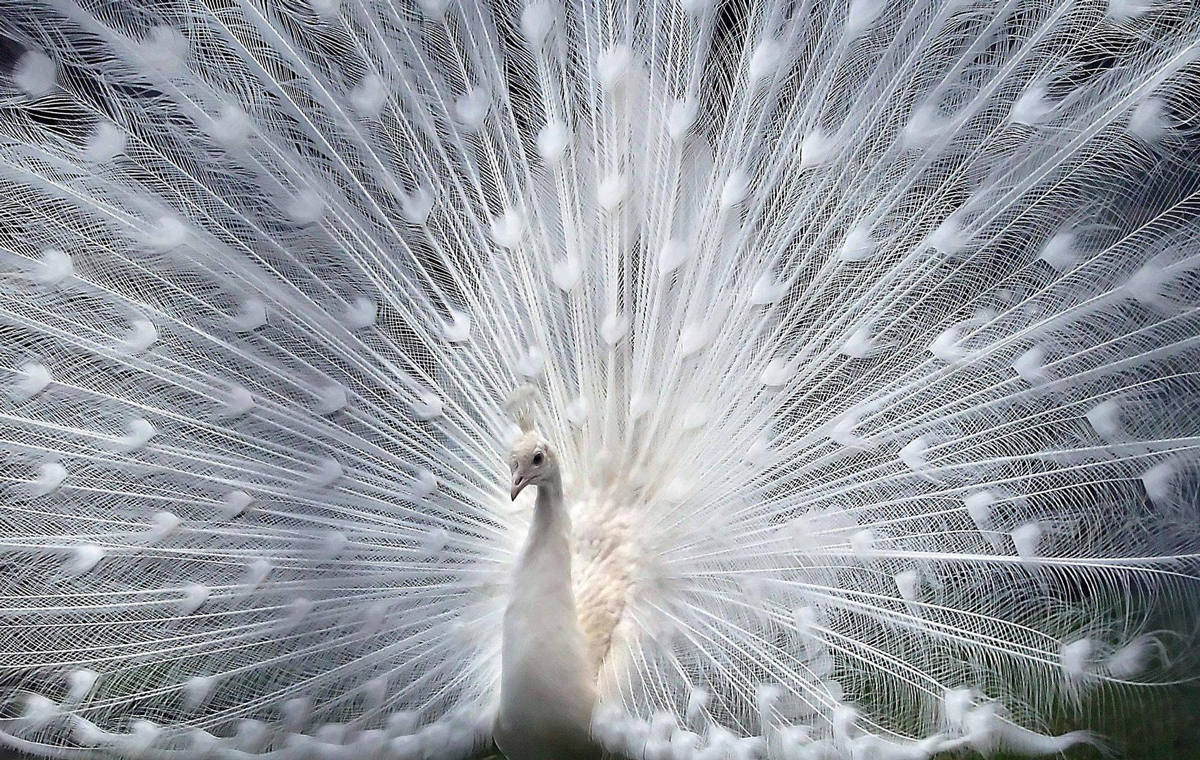
The following browser result uses a normal demonstration image. Because it does not contain orientation metadata requiring correction, both versions are expected to look the same.
from-image
none
Both images normally appear identical because the demonstration image does not require an orientation correction.
Testing with an EXIF Image
To test the difference, replace the image source with a JPEG that contains EXIF orientation metadata, such as an orientation value of 6 or 8. Compare the results in browsers that support the relevant behavior.
Alternative: Rotate an Image Visually
.rotated-image {
  transform: rotate(90deg);
}
Use a CSS transform when a specific visual rotation is required regardless of the image's embedded metadata.
Common Mistakes
Using an Angle Value
img {
  image-orientation: 90deg;
}
Angle values are not supported by the current standard syntax. Use transform: rotate(90deg) for visual rotation.
Expecting Every Image to Change
Images without orientation metadata normally look the same with from-image and none.
Assuming none Always Disables Metadata Correction
Browsers may still apply orientation metadata in certain situations. Do not rely on none as a universal override.
Confusing image-orientation with transform
The image-orientation property uses embedded orientation information. The transform property applies visual transformations to rendered elements.
Assuming CSS Changes the Image File
CSS changes how an image is displayed. It does not permanently rotate the stored pixels or rewrite EXIF metadata.
Ignoring Image Dimensions
Orientation metadata can affect the displayed dimensions of an image. Test responsive sizing and fixed-size containers with portrait and landscape photographs.
Using CSS Instead of Correcting Image Files
If an image must display consistently across applications and browsers, correct its orientation and metadata during image preparation.
Important Considerations
Keep the following points in mind when using image-orientation:
- The property controls whether embedded image orientation metadata is applied.
- The initial value is
from-image. - The property is inherited.
- The standard values are
from-imageandnone. - The
from-imagevalue uses available orientation metadata. - The
nonevalue requests that applicable orientation metadata be ignored. - Browsers may still honor orientation metadata in certain circumstances.
- EXIF orientation metadata is commonly found in digital photographs.
- Images without relevant orientation metadata normally display identically with either value.
- Angle values are not part of the current standard syntax.
- Use
transformorrotatefor arbitrary visual rotation. - Use
object-fitandobject-positionfor image sizing and positioning within a content box. - CSS does not permanently modify image pixels or metadata.
- Orientation can affect the dimensions used for image layout.
- Correct image files before publishing when consistent orientation is essential.
- Test image orientation behavior across the browsers and image formats used by your website.
Browser Support
The CSS image-orientation property is supported in modern browsers, including Chrome, Edge, Firefox, Safari, and Opera. However, the behavior of none may be restricted or differ in certain situations.
Modern browsers generally honor embedded image orientation metadata by default. The property should not be treated as a guaranteed way to override orientation information for every image.
For current compatibility information, visit Can I Use? and search for image-orientation.
Specifications
The image-orientation property is defined in the CSS Images Module Level 3 specification.
CSS Images Module Level 3: image-orientation
The specification describes how image orientation metadata affects the rendering and sizing of images.
For additional documentation and examples, consult MDN Web Docs.