
HTML Editor Examples
Learn how to use the interactive HTML Editor to write, modify, test, and save HTML, CSS, and JavaScript directly in your browser.
The HTML Editor provides a hands-on way to explore how webpages work. You can examine example code, make changes, and immediately see how those changes affect the result. No additional software is required.
Editor examples are available throughout the HTML and CSS tutorials. Some appear directly within tutorial pages, while others can be opened in a separate browser tab for a larger editing workspace.
On This Page
Using the Embedded Editor
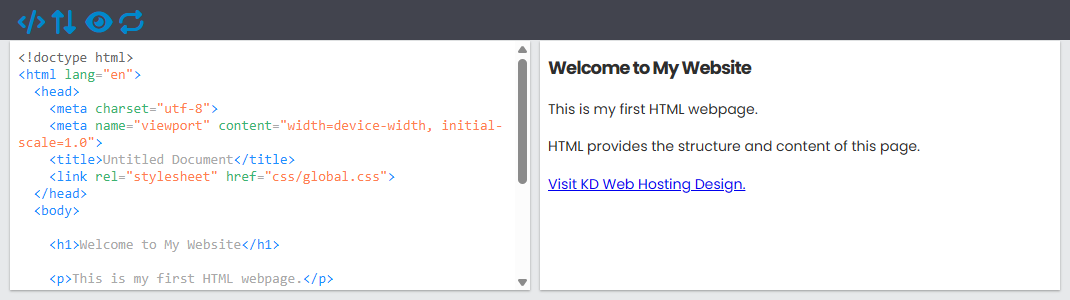
Many tutorials include an embedded HTML Editor directly on the page. This compact editor allows you to experiment with example code without leaving the tutorial.
The editor is divided into two areas:
- Code Editor: The left panel contains the HTML code. You can select, delete, or modify the code to experiment with the example.
- Browser Preview: The right panel displays the result of the HTML code as it would appear in a browser.
After making changes, select the View Result icon to update the preview. You can repeat this process as often as you like.
Opening the Full Editor
Below the embedded editor, select the Play in Editor button to open the example in a separate browser tab. This provides a larger workspace and access to the complete editor toolbar.
The original tutorial remains open in its own tab, so you can return to the instructions without losing your place.
Using the Full HTML Editor
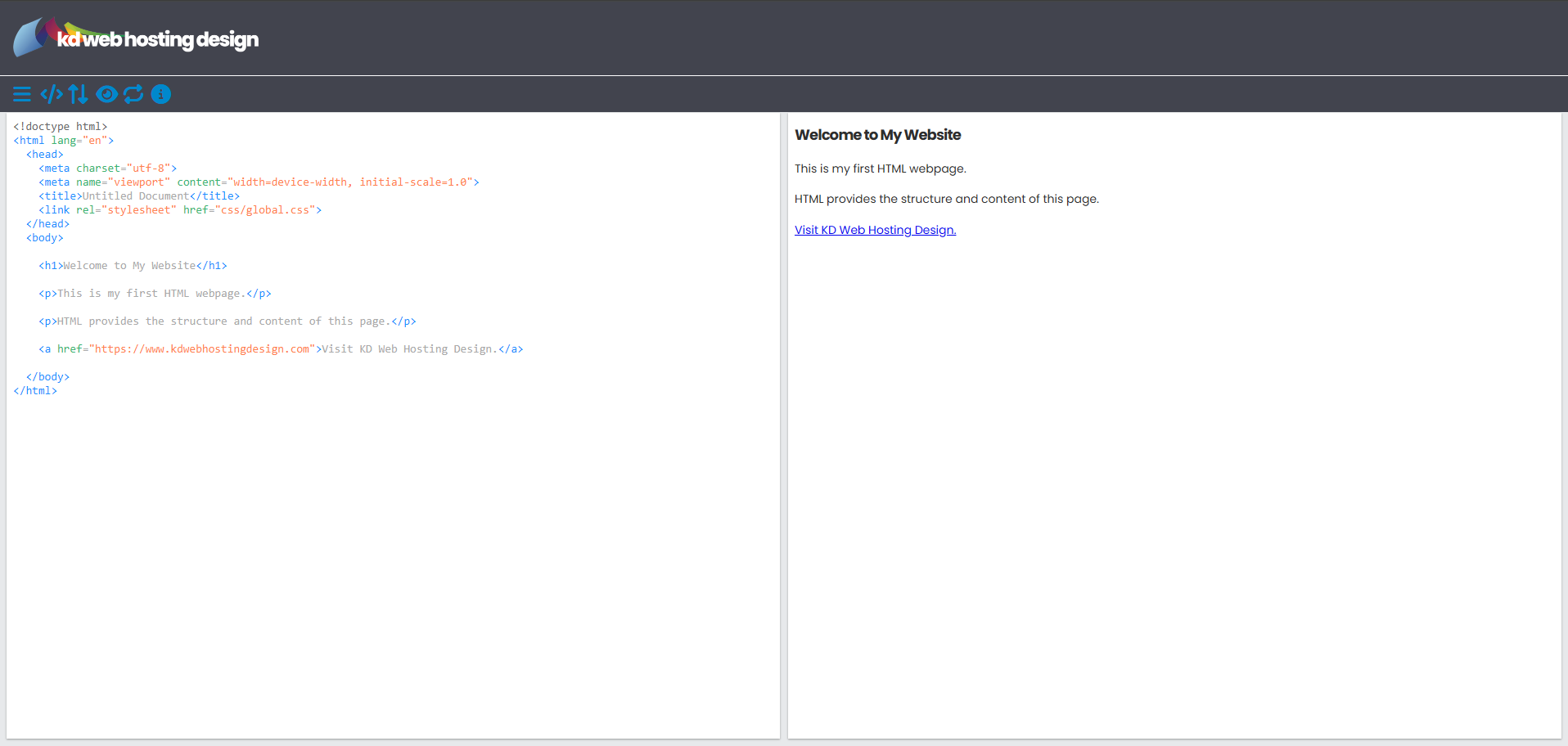
The full HTML Editor provides more room to work with code and view the results. It includes a code editing panel, a browser preview, and a toolbar with controls for running, resetting, arranging, and downloading your code.
On larger screens, the code editor and browser preview appear side by side. You can change their arrangement using the orientation control when a different layout is more convenient.
Making Changes to the Code
Click inside the code editor and place the cursor where you want to make a change. You can edit existing text, add HTML elements, change attribute values, or modify CSS declarations.
For example, try changing the text inside a heading element:
<h1>My First Heading</h1>Change the text to:
<h1>Welcome to My Webpage</h1>Select the View Result icon to update the preview. The heading will display the new text.
You can also experiment with CSS by changing colors, font sizes, borders, spacing, and other style properties.
Editor Tools and Controls
The editor toolbar contains several icons that control how you work with the example. The full editor also includes a dropdown menu with labeled versions of these controls.

Download HTML File
Downloads the current code from the editor as an HTML file. Any changes you have made are included in the downloaded file.
You can open the saved file in a text editor, HTML editor, or web browser. The downloaded filename is markup.html.
Change Orientation
Changes the arrangement of the code editor and browser preview. This is useful when working on smaller screens or when you want more room to view the code.
View Result
Runs the current code and updates the browser preview. Select this icon after making changes to see how the webpage responds.
Reset Page
Reloads the editor and restores the original example code. Any changes you have made will be lost.
Important: Download your HTML file before resetting if you want to keep your changes.
Overview
Opens a popup containing a brief explanation of the editor and its main controls. This information is available whenever you need a quick reminder.
Saving Your HTML and CSS Files
When you finish editing an example, you can download the HTML file to your computer. Select the Download HTML File icon to save the current code as markup.html.
After downloading, you can rename the file, open it in a text editor, or view it in your browser. Use a plain text editor or an HTML editor when making further changes.
Working with External CSS Files
Some editor examples use an external CSS stylesheet to control the appearance of the webpage. These files are connected to the HTML document using the <link> element.
For example:
<link rel="stylesheet" href="css/global.css">In this example, the browser looks for a file named global.css inside a folder named css.
Downloading the HTML file does not automatically download external stylesheets. When a CSS download link is provided, download the accompanying stylesheet separately.
To keep the stylesheet connected to the HTML file, preserve the folder structure referenced by the href attribute. For the example above, the files should be arranged as follows:
markup.html
css/
  global.css
If the stylesheet is missing or saved in the wrong location, the HTML content may still display, but some of its styling may not appear as intended.
Editing Downloaded Files
HTML and CSS files should be edited using a plain text editor or a code editor. Avoid word processing programs, such as Microsoft Word, because they may add formatting that interferes with your code.
Tips for Practicing
The best way to become familiar with HTML and CSS is to experiment with the examples. Start with small changes and observe how each one affects the result.
- Change text: Edit the contents of a heading or paragraph.
- Add elements: Insert another paragraph, heading, or list item.
- Modify attributes: Change a link destination, image source, or other attribute value.
- Experiment with CSS: Adjust colors, font sizes, margins, padding, and borders.
- Test one change at a time: Run the code after each modification to understand what changed.
- Save your work: Download the HTML file before resetting or closing the editor if you want to keep your changes.
Do not worry about making mistakes. You can always reset an example to restore its original code and begin again.
Start Exploring
Ready to practice? The following examples provide useful starting points for experimenting with HTML and CSS.
- Creating Your First Web Page - explore the structure of an HTML document.
- HTML Headings - experiment with different heading levels.
- Image Alt Text - examine how alternative text is added to images.
- Unordered Lists - practice creating and editing lists.
- Form Labels - explore how labels are connected to form controls.
- CSS Text Color - experiment with different text colors.
For additional examples, explore the Editor Files navigation menu. The collection includes examples covering HTML elements, attributes, forms, text formatting, images, CSS styling, and many other topics.